In the last post of this Set Up Your Food Blog series, you made three big decisions — the kind every new food‑blogger‑in‑the‑making has to make:
- You chose the kind of food you want to be known for (your niche)
- You picked the perfect name for your place (your domain)
- You chose where your blog will live (your hosting)
Now that the “building” is yours, it’s time to step inside and get familiar with the space — your WordPress dashboard.
This is where your recipes, stories, and creativity will come to life.
Think of this stage like walking into an empty kitchen for the first time.
The counters are clear.
The shelves are bare
Everything is waiting for you to bring it to life.
And the best part?
You don’t need tech skills for this part, just curiosity, a few clicks, and the same passion you bring to your real kitchen.
Let’s get your space ready.
📣 Please note: Some links in this post are affiliate links. If you make a purchase through them, I may earn a small commission — at no extra cost to you. Think of it as a tiny thank‑you for sharing my favorite culinary finds. Your support truly means a lot.
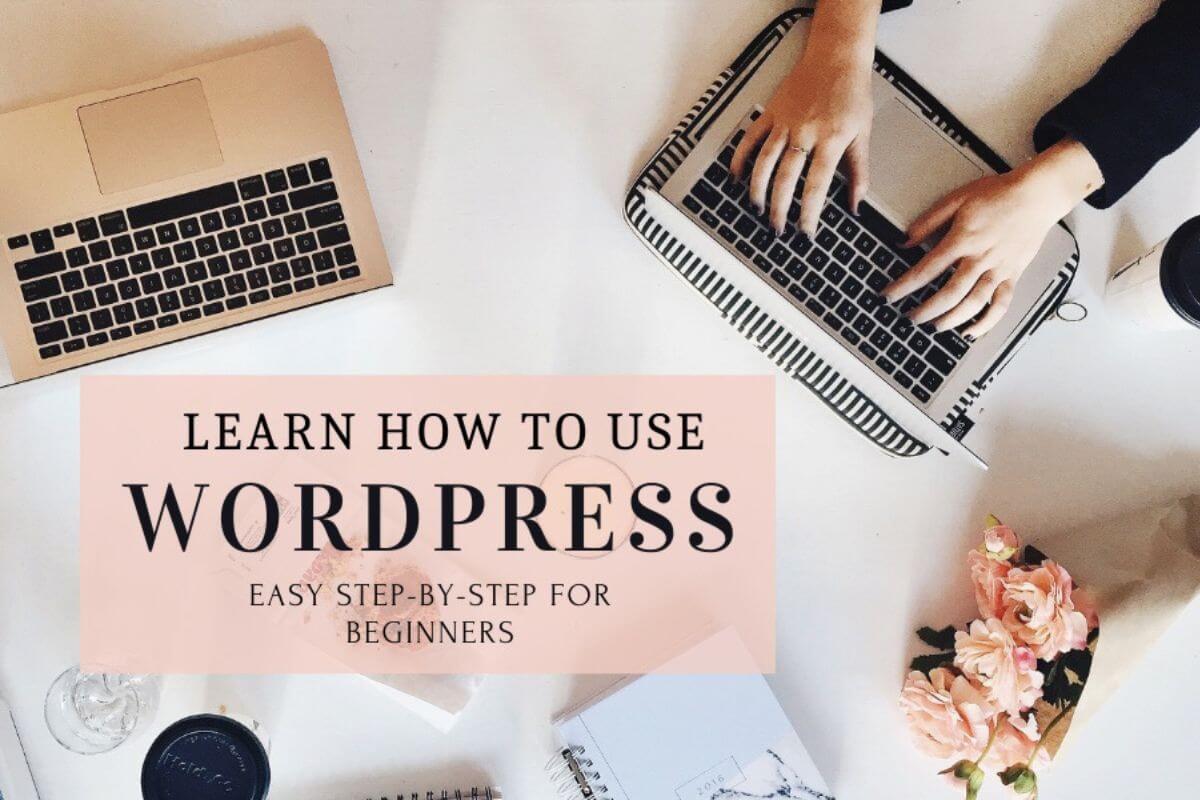
Step 1: Sign Up with Bluehost (If You Haven’t Yet)
If you haven’t chosen hosting yet, this is your first step.
Once you pick your plan, Bluehost walks you through a super simple setup. You’ll:
- Confirm your domain name
- Add your basic info
- Choose your hosting term (12 months is perfect for beginners)
- Skip the extras for now
- Enter payment details
The Basic Plan is perfect to start with. It’s affordable, beginner‑friendly, and includes a free domain for your first year.
After checkout, Bluehost automatically guides you to install WordPress — no downloading, no coding, no stress.
Step 2: Install WordPress (It’s Literally One Click)
Inside your Bluehost dashboard, you’ll see a button that says something like “Install WordPress.”
Click it.
That’s it.
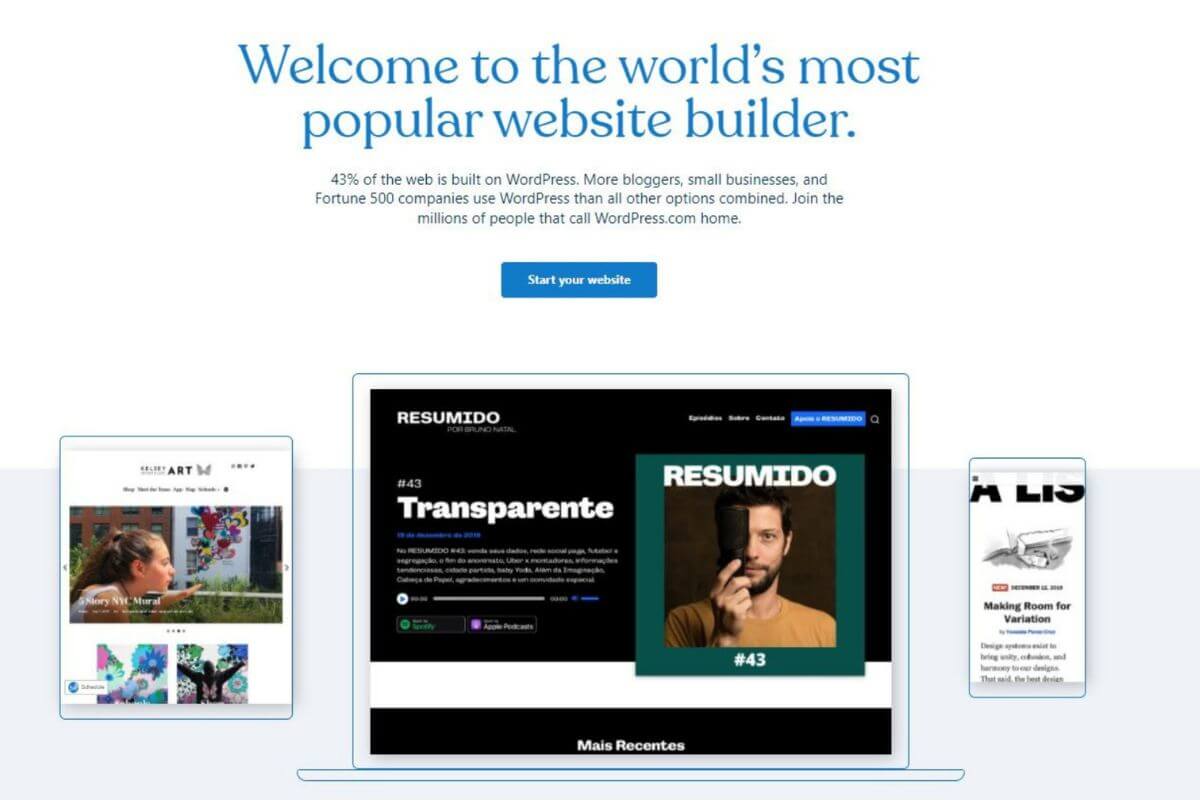
Once it’s installed, you’ll get a login link to your WordPress dashboard: yourdomain.com/wp-admin
Save it — this is your kitchen counter, where you’ll spend most of your time as a blogger; cooking, plating, and serving your content.
💡 Forgot your login or got locked out of WordPress? You can always access your WP dashboard through Bluehost.
Step 3: Log Into Your WordPress Dashboard
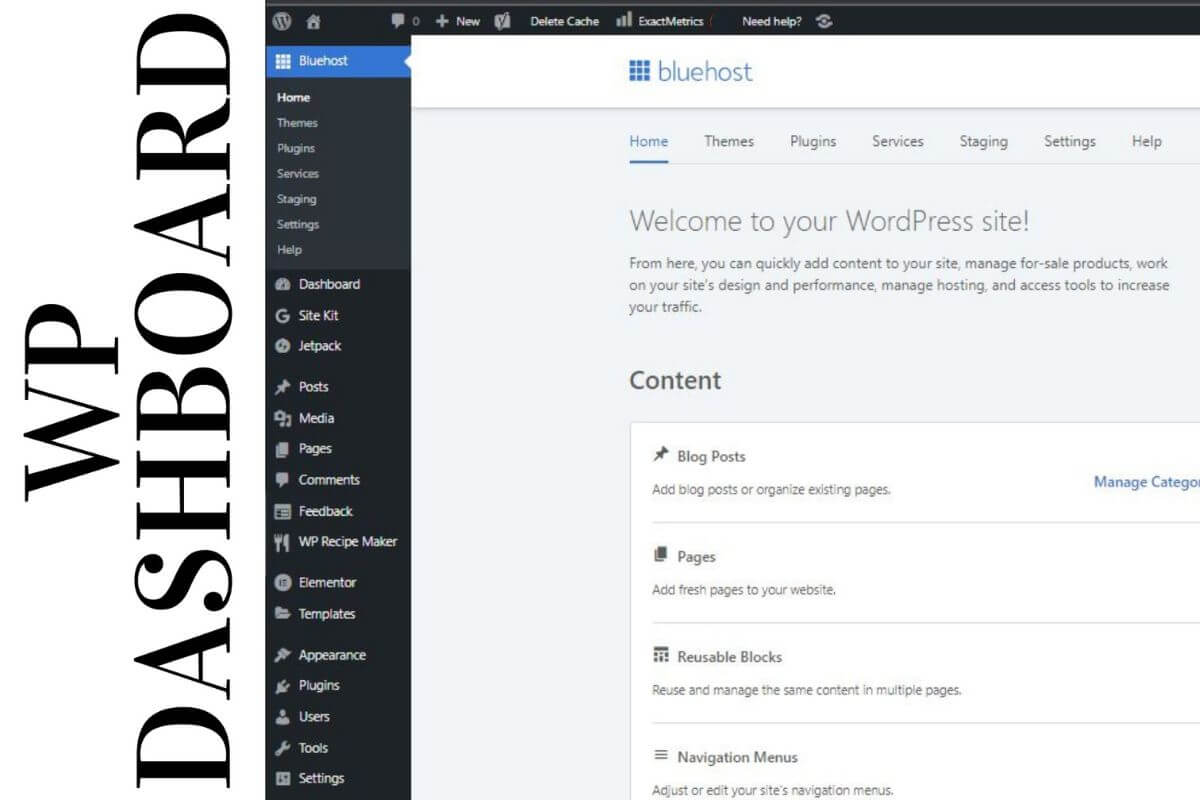
This is where everything happens — your recipes, your photos, your pages, your design.
It might look a little overwhelming at first, but so does any new kitchen.
You’ll get comfortable faster than you think.
On the left‑hand side, you’ll see a menu. Here’s what the main sections mean in simple terms:
- Posts — where you write and manage your recipes and blog content
- Media — where your food photos and images are stored
- Pages — your About, Contact, Recipe Index, and other static pages
- Appearance — your blog’s “interior design” (theme, menus, widgets)
- Plugins — extra tools (recipe cards, security, SEO, backups, etc.)
- Settings — blog’s basic setup (site title, time zone, permalinks)
- Bluehost — hosting tools and performance options
Click around.
You won’t break anything.
Exploring is the best way to learn your new space and feel at home inside WordPress.
💭 Should You Make Your Site Public Yet?
Short answer: not yet.
Right now, your blog is like a restaurant still under renovation.
Your hosting is set up.
WordPress is installed.
But your menu, pages, and categories aren’t ready for public.
Bluehost automatically puts your site in Coming Soon mode — and that’s a good thing.
Use this time to:
- Choose and customize your theme
- Install essential plugins
- Create your About, Contact, and Recipe Index pages
- Draft your first recipe post
- Upload a few photos
Once your blog populate with a few essential pages and posts, then it’s time to go live.
Look at you — you’ve gone from dreaming to doing.
Your food blog is no longer just an idea… it’s a space you’re building with intention, creativity, and heart.
WordPress + Bluehost gives you a clean, simple space to work in and you’re learning it step by step, just like a new recipe.
What’s Next?
You’ve already,
- Chosen your niche, domain, and hosting
- Logged into WordPress and explored your dashboard
👉 Next up in the series: How to Customize Your WordPress Settings and Choose Your Theme
👉 Previous post: How to Choose Your Niche, Domain, and Hosting
And if you haven’t signed up to a hosting yet:
👉 Start your food blog with Bluehost here
(It’s the same hosting I use — and you’ll get a sweet deal through my link)
Ready to finally start your food blog without overthinking every step, I’ve put together a FREE 30‑Day Grid View Challenge — a simple day‑by‑day roadmap you can download or print. It’s perfect if you just want clarity, structure, and a gentle push to stay consistent.
But if you prefer a guided experience with daily instructions and walkthroughs, you can upgrade to the 30‑Day Food Blogging Challenge Step‑by‑Step Guide.
Start with the free grid.
Upgrade anytime if you want the full guided version.
Your food blog can absolutely begin today.
And don’t forget to check out what’s new on our shelf, you’ll find helpful blogging resources and stress-free meal planning printables to download or print.
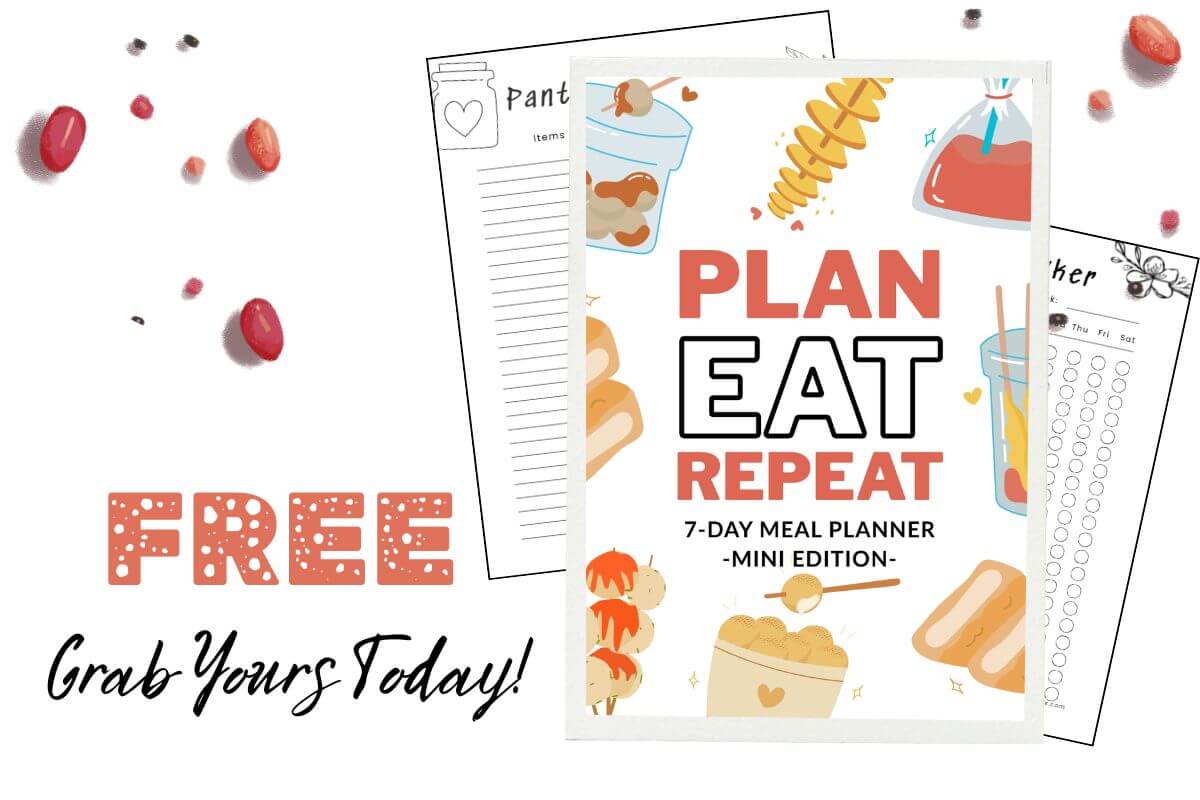
Want an easier way to plan your meals?